Test Execution
The Test Execution tab in a test suite displays the execution records for every combination of Release, Cycle and Platform linked to a test suite. From here testers can execute test cases, set planned dates, assign testers, perform bulk updates, and manage archived runs.
When multiple Releases, Cycles, and Platforms are associated with a test suite, the system creates execution records for each unique combination.
Item | Count |
|---|---|
Releases | 2 |
Cycles | 4 |
Platform | 2 |
Total executions = 2 × 4 × 2 = 16 execution records
Note
The Test Executions tab displays suites that have at least one Release, Cycle, and Platform linked.
Customize Test Execution Grid View
Click Arrange Column to adjust the Test Execution view:
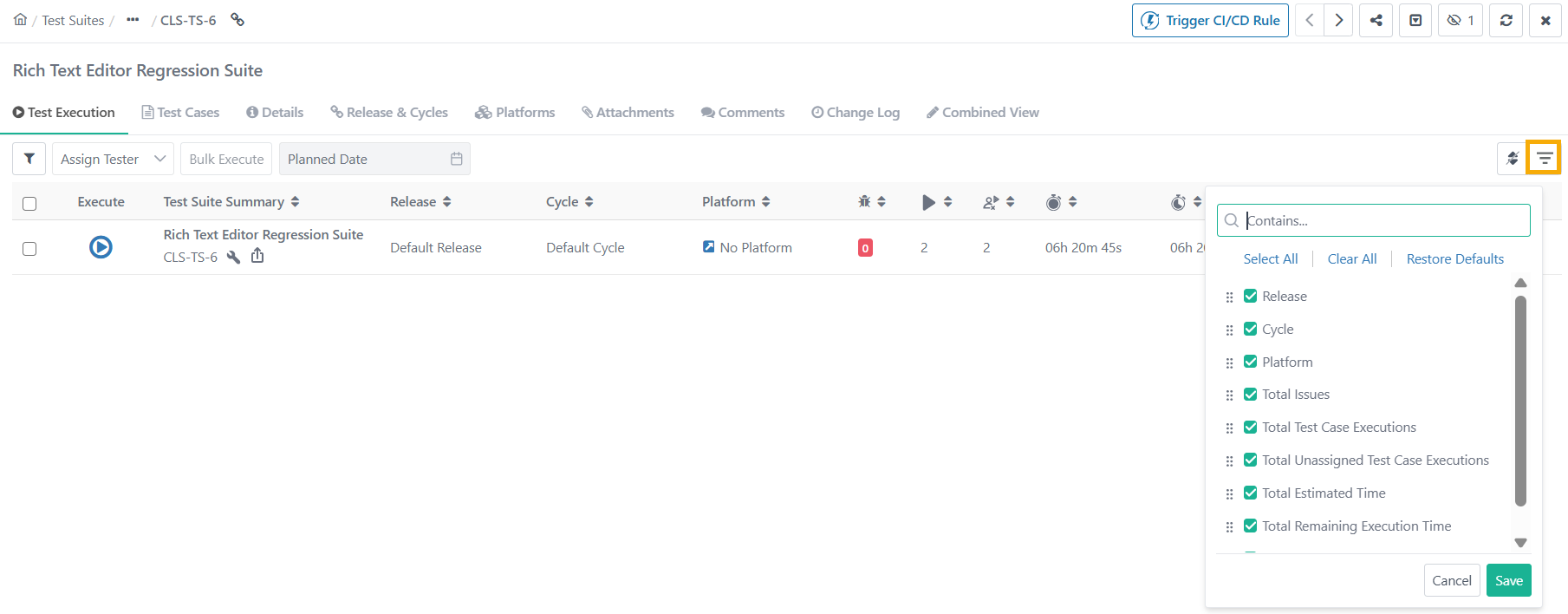 |
Show or Hide Columns: Select the checkboxes to display specific fields.
Reorder: Reorder columns to fit the preferred layout by dragging and dropping the fields.
Resize Columns: Adjust column widths by dragging the borders.
Note
You cannot arrange or hide Execute, Automation Execution, and Summary columns.
The Test Execution view configured in the Test Execution tab is applied to:
Bulk Operations: For eSignature-enabled projects, during bulk approval processes for statuses like Approved, Request Changes, and Closed.
Traceability Report: When tracing by test executions.
Test Execution Tab Fields
Execution Type
The Execution Type field displays whether the execution is Manual and Automated.
Testers find it difficult to search through multiple pages to find their automated executions on the Test Execution Screen. This column helps sort and list the test suites by the execution type.
Status
Hover the mouse over the bar under the Status column to view the test suite status.
Total Test Case Executions and Total Unassigned Test Case Executions
The count excludes archived test execution runs, archived test cases and their runs, and test cases linked through archived platforms, releases, and cycles.
What you can do on this tab
Assign a tester to a test suite.
Set the planned date for a test suite.
Run multiple test suites together with Bulk Execute.
Filter the grid to find specific test suites.
Trigger a CI/CD rule for the test suite.
Review the test execution details.
For more information about Bulk Execute, refer to the Bulk Operations on Test Executions.
Assign Tester
Note
To assign, modify or unassign test execution testers, you need test suite modify and test suite execute permissions.
To assign a tester, do the following:
Select the test runs by checking the corresponding boxes.
Click Assign Tester.
Select a user from the drop-down menu.
 |
Set Planned Execution Date
Schedule intended execution dates for each test case run. This improves visibility, tracking, and reporting for planned versus actual timelines.
Note
Users with permission to execute Test Suites or Test Cases can set a planned date.
To set planned execution date, do the following:
Select the test runs and click Planned Date.
Select the date from the calendar.
If you do not have a planned date yet, then select Set as Unplanned.
Note
You can bulk update planned dates from Execution Screen, Test Executions tab, and Bulk Execute section on the Test Execution tab.
In eSignature-enabled projects, planned dates apply only to approved executions. The system prevents planned date updates for executions marked In Review or Closed.
Bulk Executions
To bulk update test executions click Bulk Execute.
Read Bulk Operations on Test Executions to know more.