Bulk Execute Test Suites
Use Bulk Execute to update the execution details of multiple test cases in a test suite. Instead of opening each test case, select the test runs you want and apply the change once.
For example, you can mark all test cases as Passed after a regression run, or assign a group of test cases to one tester.
Prerequisites
Before you begin, make sure that:
The test suite contains at least one test case.
You have permission to execute test cases in the project.
Selection Options
Use the check boxes on the screen to define the scope of your update. You can select:
Individual Test Cases
A test case across all its releases, cycles, and platforms: the check box in the test case row.
A platform across all releases and cycles: the check box in the platform header. To view the platform attributes, select the information icon next to the platform name.
A release and cycle: the check box in the release and cycle header. This selects all test cases on the current page for that combination.
All test cases: the check box in the header row. This selects all test cases across all releases, cycles, and platforms.
Bulk Execute Test Runs
Note
The Bulk Execute button is enabled only after you select at least one test run in the grid.
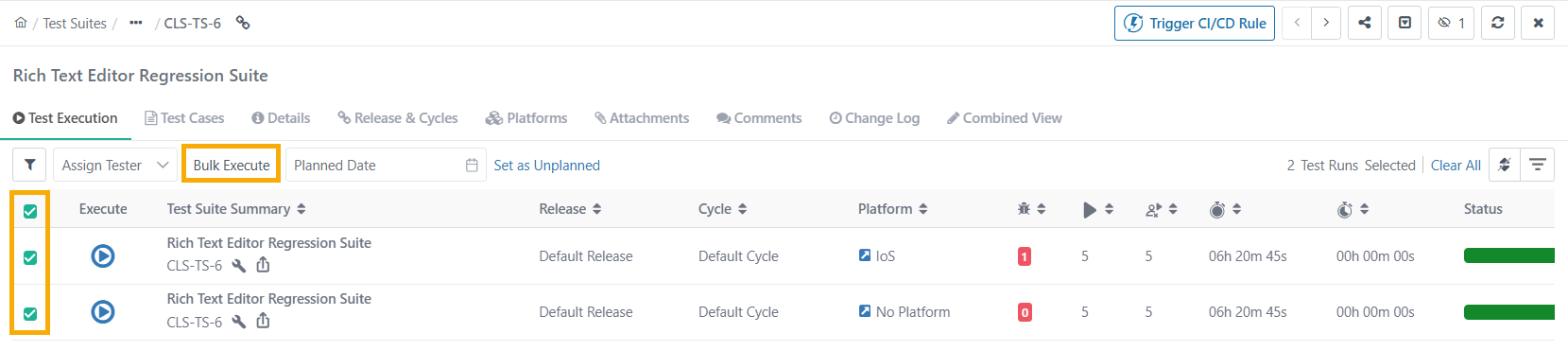
To bulk execute test runs, do the following:
 |
Go to the Test Suites module.
Open the test suite, and then select the Test Execution tab.
In the grid, select the test runs that you want to update.
Click Bulk Execute.
Select the test cases or platforms to update, and then apply one or more of the following updates:
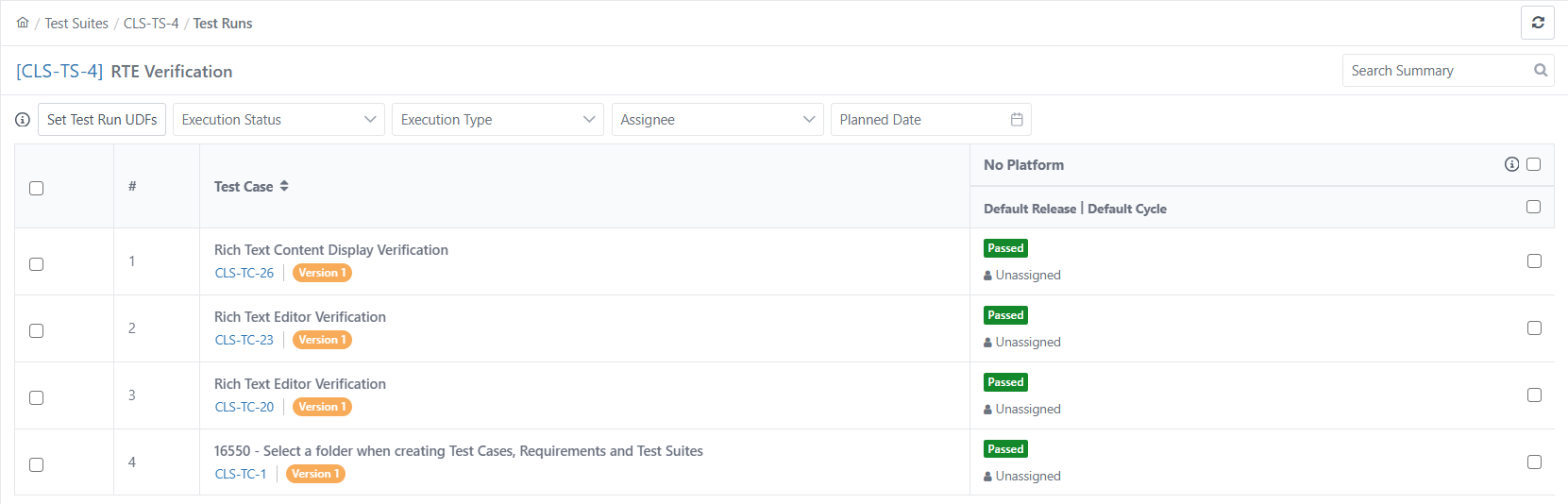
Set Test Run UDFs
Execution Status
Execution Type
Assignee
Planned Date
The updates run as a background task. To track progress, go to Scheduled Tasks.
Note
You can select a maximum of 20 test execution runs at a time.
In the Test Run UDFs section, a red asterisk (*) marks a mandatory UDF.
When you update Execution Status, Test Runs with an empty mandatory Test Run UDF are skipped. The system does not apply the status change to them.
Each skipped test run is recorded as a warning in the error file: “Skipped: blank mandatory Execution UDF(s)”. The warning appears in the error file under Scheduled Tasks.
Set Test Run UDFs
If your project uses Test Run UDFs, you can set their values for several test cases at once. This option appears only when the project has at least one Test Run UDF configured.
On the Test Runs screen, select the test cases to update.
Click Set Test Run UDFs.
In the Bulk Update Test Run UDFs dialog box, select the check box next to each UDF that you want to update.
Enter or select the value for each selected UDF.
For a UDF that contains a list of values, choose how to apply your value:
To add the value to the existing values, select Append to existing.
To replace the existing values, select Replace all with.
Click Update.
Note
Only the UDFs whose check boxes you select are updated. UDFs with cleared check boxes remain unchanged for every test case.
Archived test cases are skipped during the bulk update.
Setting Planned Execution Date
Schedule intended execution dates for each test case run. This improves visibility, tracking, and reporting for planned versus actual timelines.
Note
Users with permission to execute Test Suites or Test Cases can set a planned date.
To set planned execution date, perform these steps:
Go to the Test Suite Detail Page and select the Test Execution tab.
Select the test runs and click Planned Date.
Select the date from the calendar.
If you do not have a planned date yet, then select Set as Unplanned.
Note
You can bulk update planned dates from Execution Screen, Test Executions tab, and Bulk Execute section on the Test Execution tab.
In eSignature-enabled projects, planned dates apply only to approved executions. The system prevents planned date updates for executions marked In Review or Closed.