Bulk Operations on Test Executions
Use bulk operations to update multiple test executions at once. You can update Test Run user-defined fields (UDFs), Execution Status, Execution Type, Assignee, Planned Date, Execution Comment, Execution Time, and linked issues across test suites that contain multiple test cases, platforms, releases, and cycles.
Bulk Execute Test Runs
To bulk execute test runs, do the following:
 |
Go to the Test Suites module.
Click a specific test suite and go to the Test Execution tab.
In the Execute column, click the blue icon. The Test Run screen opens.
On the toolbar, click Bulk Operations.
Select the update that you want to make:
Execution Status
Assignee
Issues
Execution Comment
Execution Type
Execution Time
Planned Date
Sync with Latest Version
Test Run UDFs
Note
The Test Run UDFs option appears only when the project has at least one Test Run UDF configured.
You must have the Test Suite Modify or Test Suite Execute permission to change the planned date.
Bulk Update Execution Status
Testers often run many executions and update their statuses at the end of a session. Use bulk update to apply one status to all of them at once.
To update the execution status in bulk, do the following:
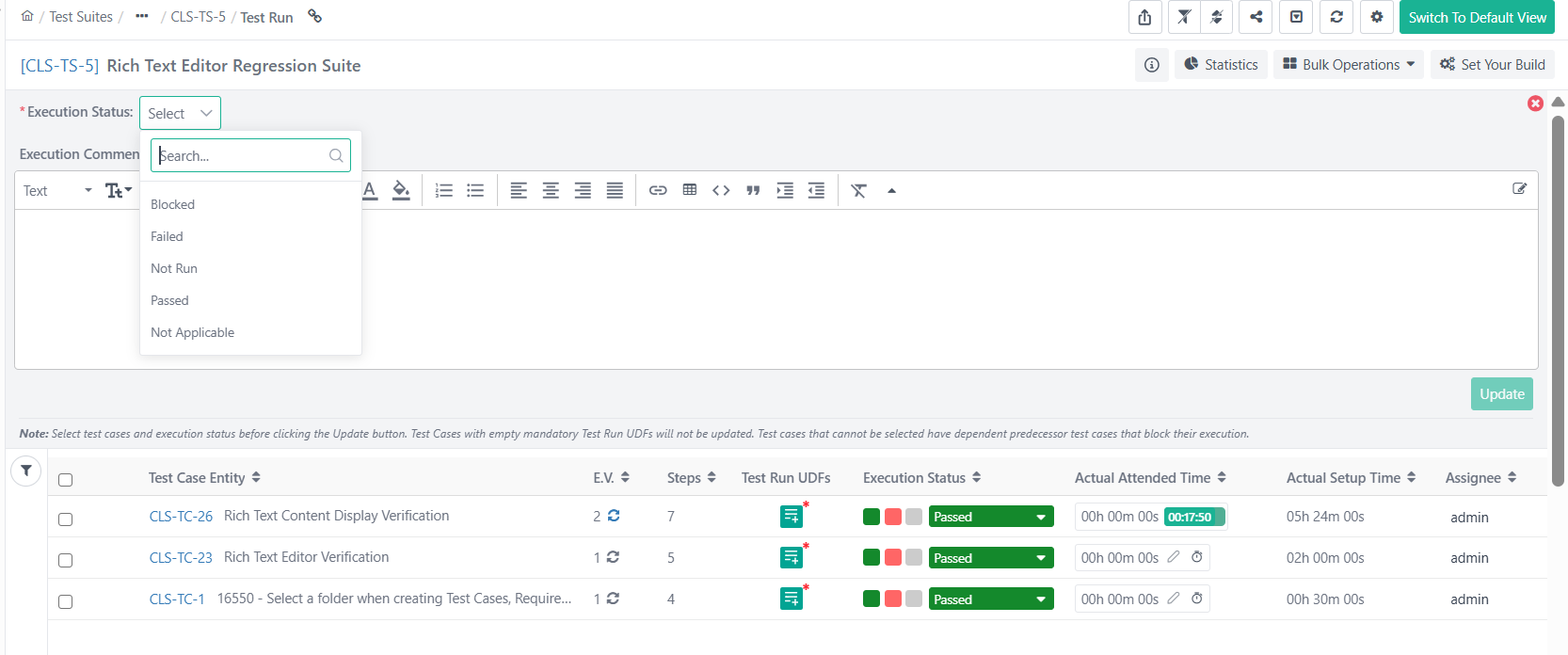 |
On the Test Run screen, click Bulk Operations, and then select Execution Status.
In the grid, select the test cases to update.
In the Execution Status list, select a status.
(Optional) In the Execution Comment box, enter a comment to explain the status change.
Click Update.
The application applies the status to all selected test cases.
Note
Test cases with an empty mandatory Test Run UDF are not updated.
Test cases that have dependent predecessor test cases that block their execution cannot be selected.
Assign Testers in Bulk
Note
You must have the Test Suite Modify or Test Suite Execute permission to assign, modify, or unassign testers.
To assign testers in bulk, do the following:
On the Test Run screen, click Bulk Operations, and then select Assignee.
Select the test cases on the grid.
In the Assignee list, select the tester.
Click Update.
All selected test cases are assigned to the tester.
Link Issues in Bulk
You can link QMetry issues or Jira defects to multiple test cases at a time. Use this when one issue affects several test cases and you want to avoid linking it individually to each execution.
To link issues in bulk, do the following:
On the Execution Screen, click Bulk Operations and select Link Issues.
Select test cases on the grid.
Select Assign Issue. Then follow the standard process for linking existing issues.
When you open the linked issue in JIRA, the test case links in JIRA appear in accordance with the defects linked to those test cases.
Set Execution Comments in Bulk
You can add the same comment to many test case executions in a test suite.
Note
You need Test Suite Execution Permissions to add execution comment.
To set execution comment in bulk, do the following:
On the Test Run screen, click Bulk Operations, and then select Execution Comment.
Select test case executions using check boxes and filters.
In the text box, enter the comment, and select the check mark to save.
Note
You can update up to 1,000 records in a single operation.
The Select All option is not available for test case dependent projects.
To use rich text in comments, enable the Rich Text Editor in Project settings.
Rich Text Editor supports formatted text. It does not support image insertion, image copy-paste, or user tagging.
You can add comments at the Test Case Execution Level and not at the Test Step Execution Level.
The maximum comment length is 65,535 characters.
Set Execution Time in Bulk
You can change the execution date and time for many test cases at once.
Before you begin:
Go to Customization, select General Settings and Audit, and turn on Allow manual edit of last executed date or time.
To set the execution time in bulk, do the following:
Click Bulk Operations.
Select Execution Time.
Select the test cases on the grid.
Select the date and time of execution using calendar and click Apply.
The application changes the date and time in the Executed At column for the selected test cases.
Update Test Run UDFs in Bulk
Use the Bulk Operations menu to update test run user-defined fields (UDFs) for multiple executions at once. The Test Run UDFs option appears only when the project has at least one Test Run UDF configured.
You can update up to 1,000 records at a time.
Bulk update skips archived test cases.
Test Run UDF values do not reset when you sync versions or update builds.
Test Run UDFs Icon
The icon in the Test Run UDFs column shows whether the Test Run UDF data is mandatory and complete.
Icons | Meaning |
|---|---|
Green icon with a star | All mandatory Test Run UDFs have values. |
Blue icon with a star | At least one mandatory Test Run UDF is blank. |
Blue icon without a star | The execution has no mandatory Test Run UDFs. |
Test Run UDFs in eSignature and Part 11 projects
When you enable eSignature, the status of the test suite execution determines whether you can edit Test Run UDFs.
Approved: You can edit the UDFs. The Test Run UDFs option is available in the Bulk Operations menu.
In Review or Closed (at any level): UDFs are read-only. The application shows saved values, but you cannot change them. The Test Run UDFs option does not appear in the Bulk Operations menu.
When you enable Part 11 Compliance, you do not need to authenticate credentials to update Test Run UDFs.
Update Test Run UDFs in Bulk
To update Test Run UDFs in bulk, perform the following steps:
Go to the Test Suites module, open the test suite, and select the Test Execution tab.
In the Execute column, click the blue icon. The Test Run screen opens.
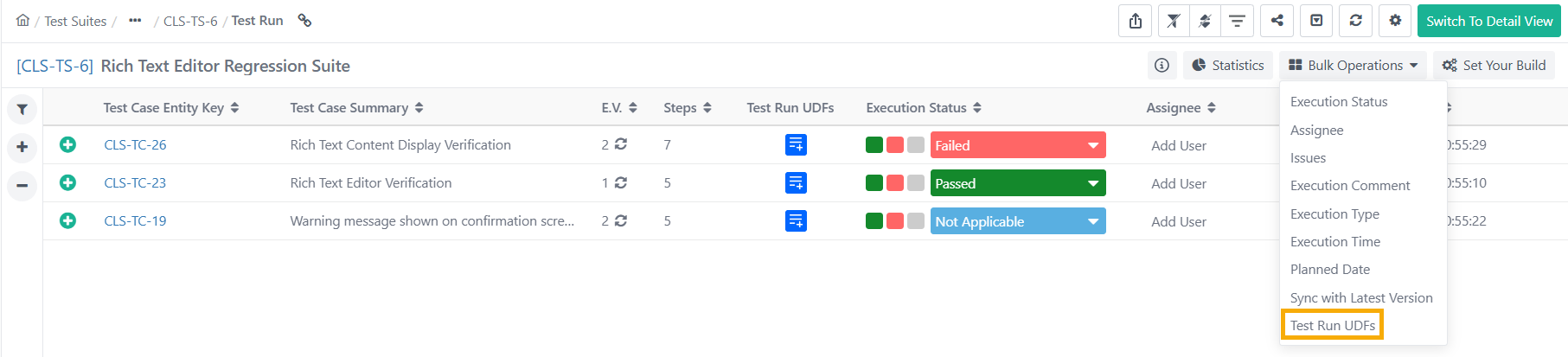
Click Bulk Operations and then select Test Run UDFs.
Select the test cases individually or click Select All (Across Pages).
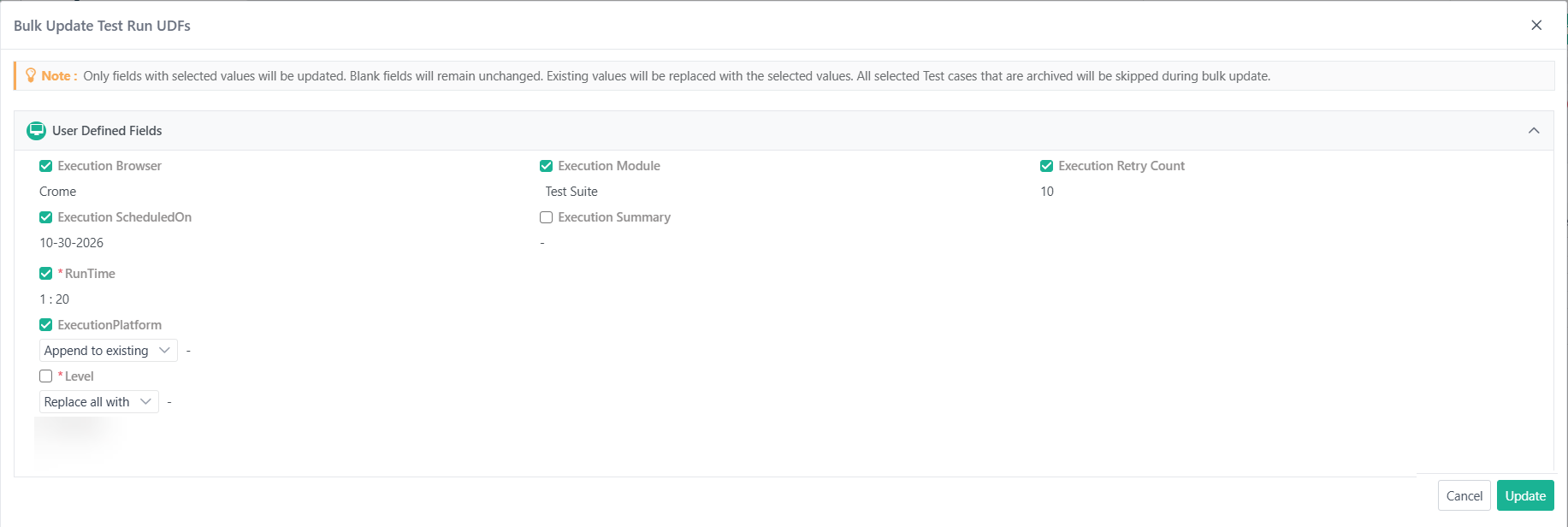
Click Test Run UDFs. The Bulk Update Test Run UDFs dialog box opens.
In the Bulk Update Test Run UDFs dialog box, select the check box next to each UDF that you want to update, and then enter or select its value.
For a multi-select list UDF, select Append to existing or Replace all with.
Select Update.
The update runs as a background task. To track its status, go to Scheduled Tasks. Details are recorded in the Change Log tab.
How bulk update applies Test Run UDF values
The application changes only the UDFs you select. The following rules apply:
Selected UDFs: The value you enter or select is applied to every selected test case.
Empty UDFs: If a selected UDF is empty for a test case, it is filled with the value you set.
Existing values: If a selected UDF already has a value, the existing value is replaced with the value you set.
UDFs not selected: If you do not select the check box next to a UDF, that UDF is not updated. Its existing values stay unchanged for every test case.
Archived test cases: The application skips them.
Mandatory UDFs: A red asterisk (*) marks a mandatory UDF in the dialog box. A bulk status update is blocked while a mandatory Test Run UDF is empty.
Multi-select list UDFs
For Multi-Select List Execution UDFs, choose how QMetry applies new values.
Append to existing: The application adds the new values and keeps the existing selections. This is the default.
Replace all with: The application overwrites the existing selections with the values you select.
QMetry records all details related to bulk UDF updates in the Change Log tab.
Cascading List UDFs
For a Cascading List UDF, select a parent-child value. The application sets the values you selected for the execution.